Teachers & Staff
A notebook for passes — built for the time you have between teaching moments.
Create a pass in about five seconds. See who is out. Respond when a student arrives. All on one calm page that respects how staff actually work.
Hall passes happen dozens of times a day: a student needs the nurse, the restroom, the library, another teacher. Each interruption is small, but the tool should never add friction to the moment.
Ona Pass gives Teachers & Staff a Staff Notebook for daily pass work — not another dashboard to learn. Open your page, send a student with a destination, watch the pass appear in Currently Out, and move on. When someone arrives at your door, Passes To You shows you exactly what you need to act.
Ona Pass is designed around that reality. The Staff Notebook is your working page — ruled paper, a hall pass sheet ready to fill in, sticky notes for students currently out, and a record page when you need history. Teachers, aides, specialists, and other staff who issue or receive passes use the same calm workspace.
This is pass software — not a platform for grades, attendance, or discipline management. That focus is intentional. When the product does one job well, staff spend less time navigating and more time teaching.
You recognize the daily work — but will creating a pass eat into instructional time?
Teachers & Staff campaign overview video
Built for staff who manage passes every day.
Ona Pass is for Teachers & Staff who send and receive students throughout the day — between classes, from the hallway, without a separate system to open. Your Staff Notebook is always there: create passes, see who is out, respond when someone arrives.
If your day includes signing students out, watching the hallway, or receiving a learner from another room, this page is for you.
The Staff Notebook looks like the objects staff already use — paper, sticky notes, a simple form — because recognition matters when you have seconds, not minutes. You are not learning a new category of software. You are opening a page that behaves like a familiar workspace.
Staff includes classroom teachers, instructional aides, counselors, librarians, and other adults who manage student movement in your building. The same notebook serves each role; what changes is how often you create passes, receive them, or both.
Ona Pass does not ask you to reorganize your day around the software. It fits the passes you already manage — with a clearer record and less hunting for status.
You see your workflow reflected here — but will sending a pass slow you down?
Create a pass in about five seconds.
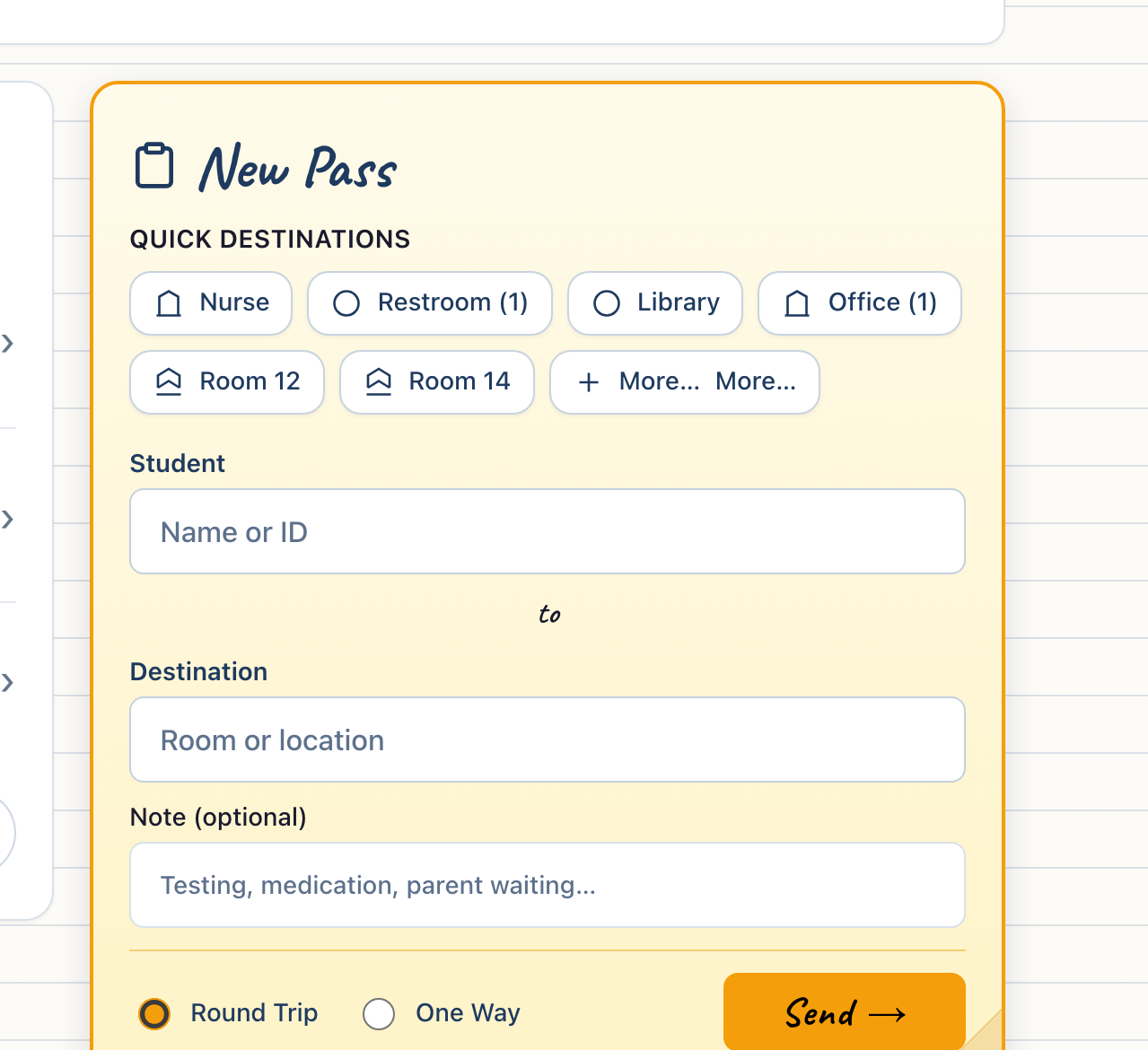
Open the Staff Notebook, choose a student, tap a destination, and send. The pass sheet stays on the page you already have open — no wizard, no extra screen, no hunt through menus.
Pass creation follows four steps on one surface:
- Open the Staff Notebook. New Pass is ready when you arrive.
- Choose a student. Search picks up names as you type; you can enter a name that is not in the list when needed.
- Choose a destination. Tap a Quick Destination or type a location — nurse, restroom, library, another room.
- Send. The pass becomes active immediately.
Most staff complete this in about five seconds once familiar — including normal pauses, not laboratory timing.
Choose Round Trip when the student should return to you, or One Way when they will not. The type is one tap before send; you do not configure a separate form for each trip.
Speed matters because passes happen in the gap between sentences, during hall duty, or as a line forms at your door. The workflow earns each click — nothing decorative, nothing redundant.
Fast to create — but can you actually use this while teaching?
One page. Your teaching rhythm stays intact.
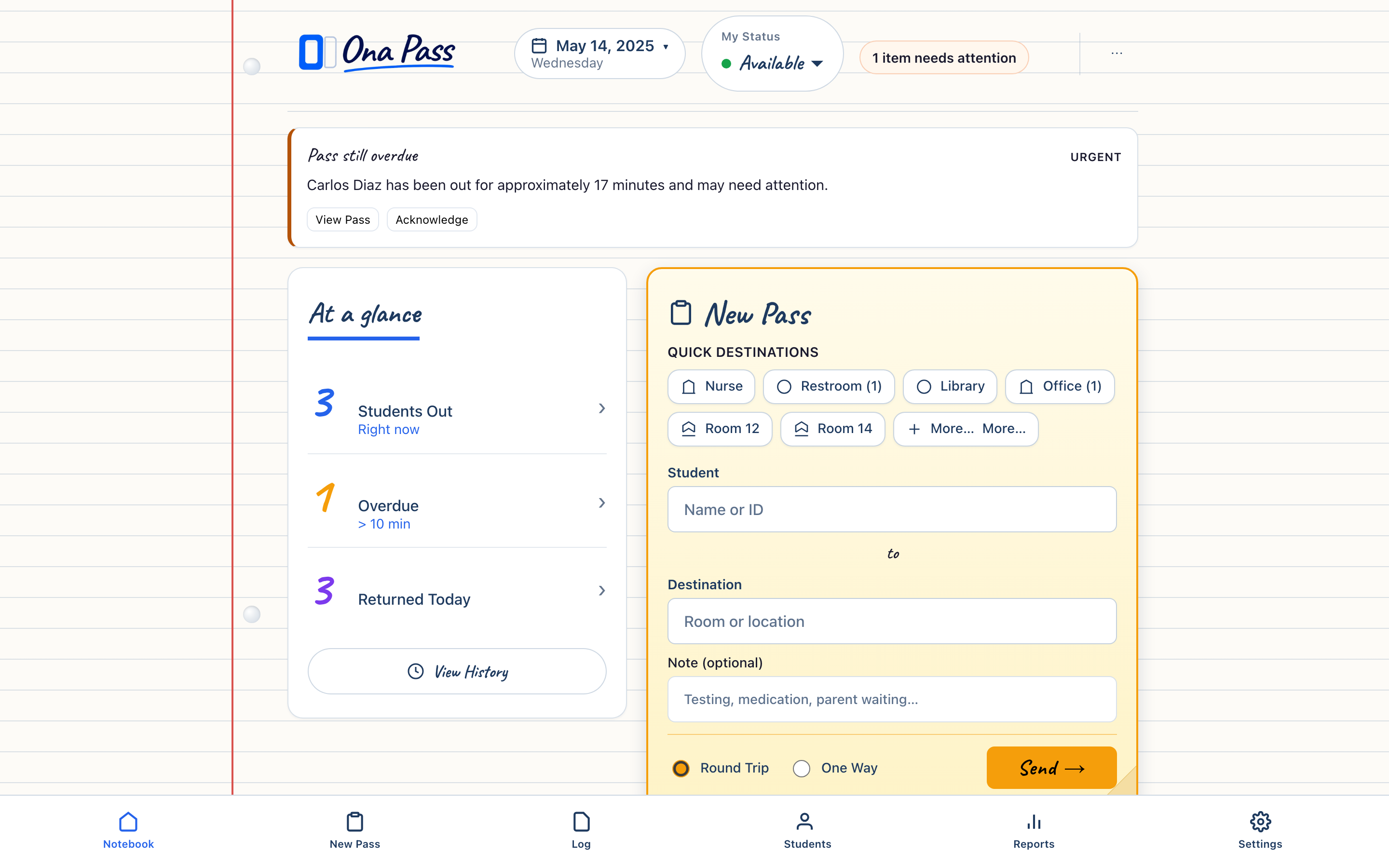
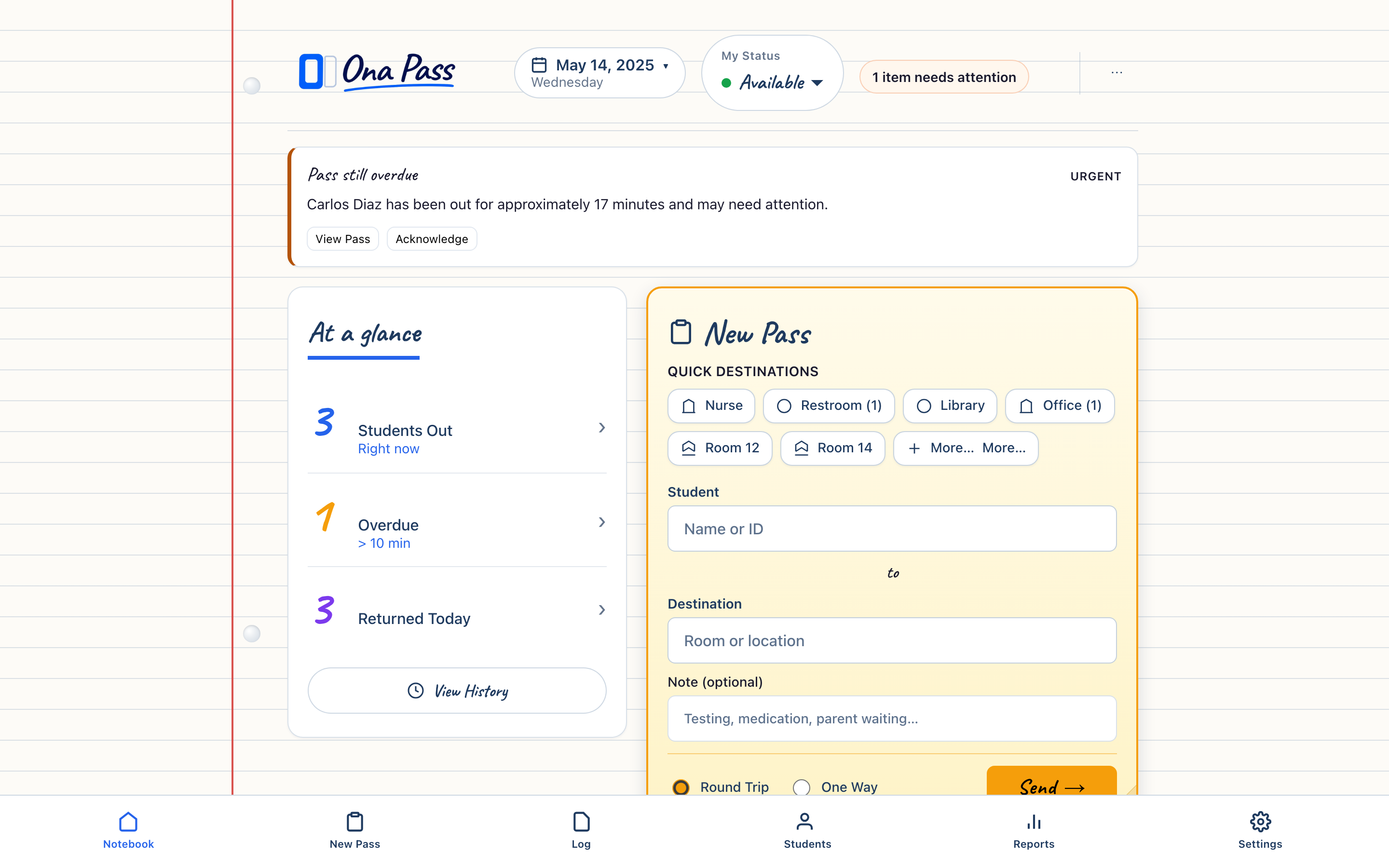
The Staff Notebook opens to your work — New Pass ready, Currently Out visible below. You do not leave the page to create a pass or check who is out. The layout stays calm so you can act in the seconds between teaching moments.
Teaching does not pause for software navigation. Ona Pass keeps the primary actions on a single notebook page so you are never lost in nested screens.
New Pass sits front and center — the hall pass sheet is the warmest surface on the page because creating passes is the most frequent task. Currently Out lives directly below, so after you send, you immediately see the sticky note appear among students already out.
Notebook tabs at the bottom reach Students, Reports, and Settings when you need them — but daily pass work rarely requires leaving the main page. That is progressive density: the full notebook is there when you lift the page; the default view stays focused.
Whether you are at your desk, in the hallway with a phone, or glancing between groups, the same page answers the question: Who needs to go, and who is already out?
Once you send a pass — what happens next?
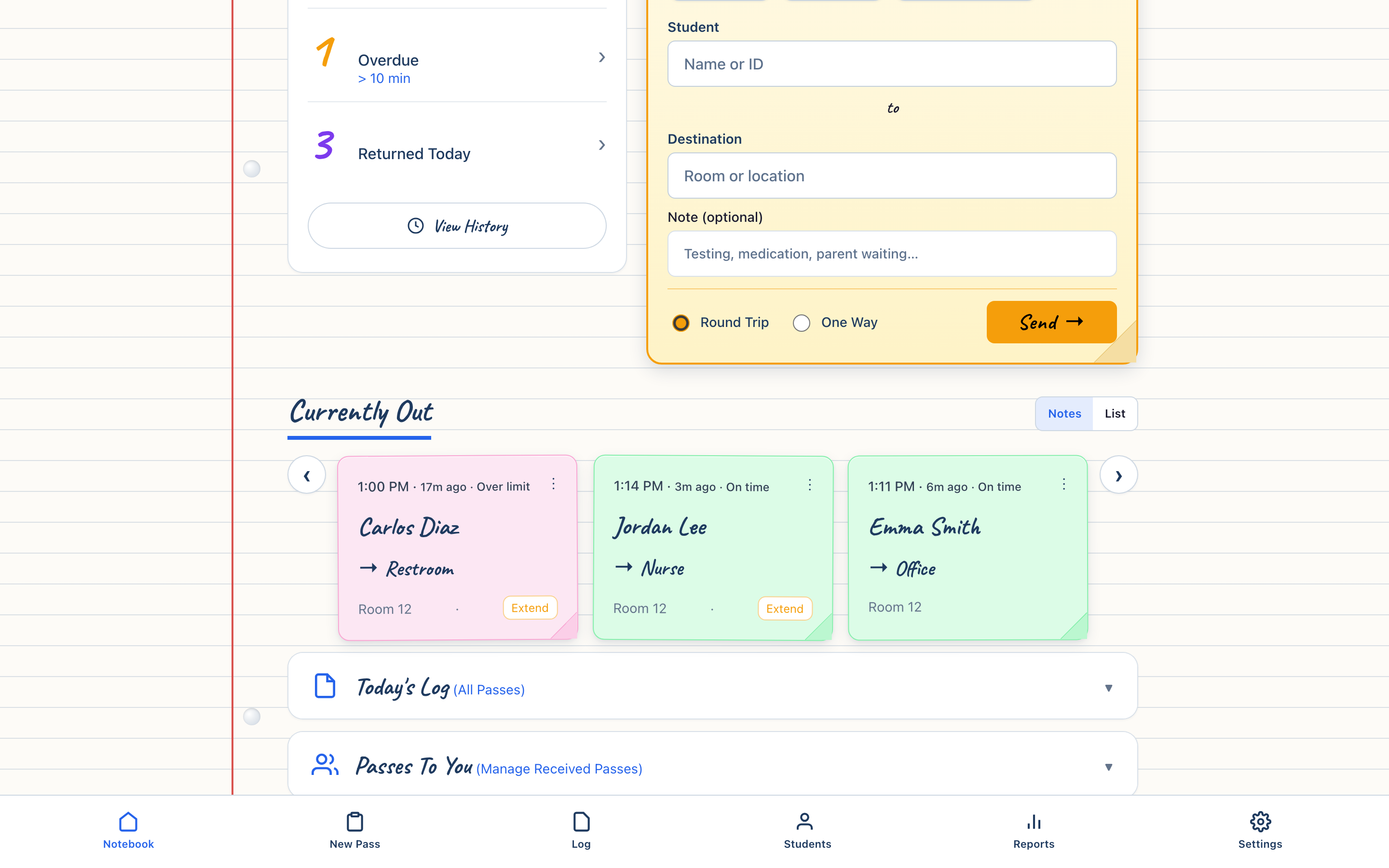
Send a pass. See it in Currently Out.
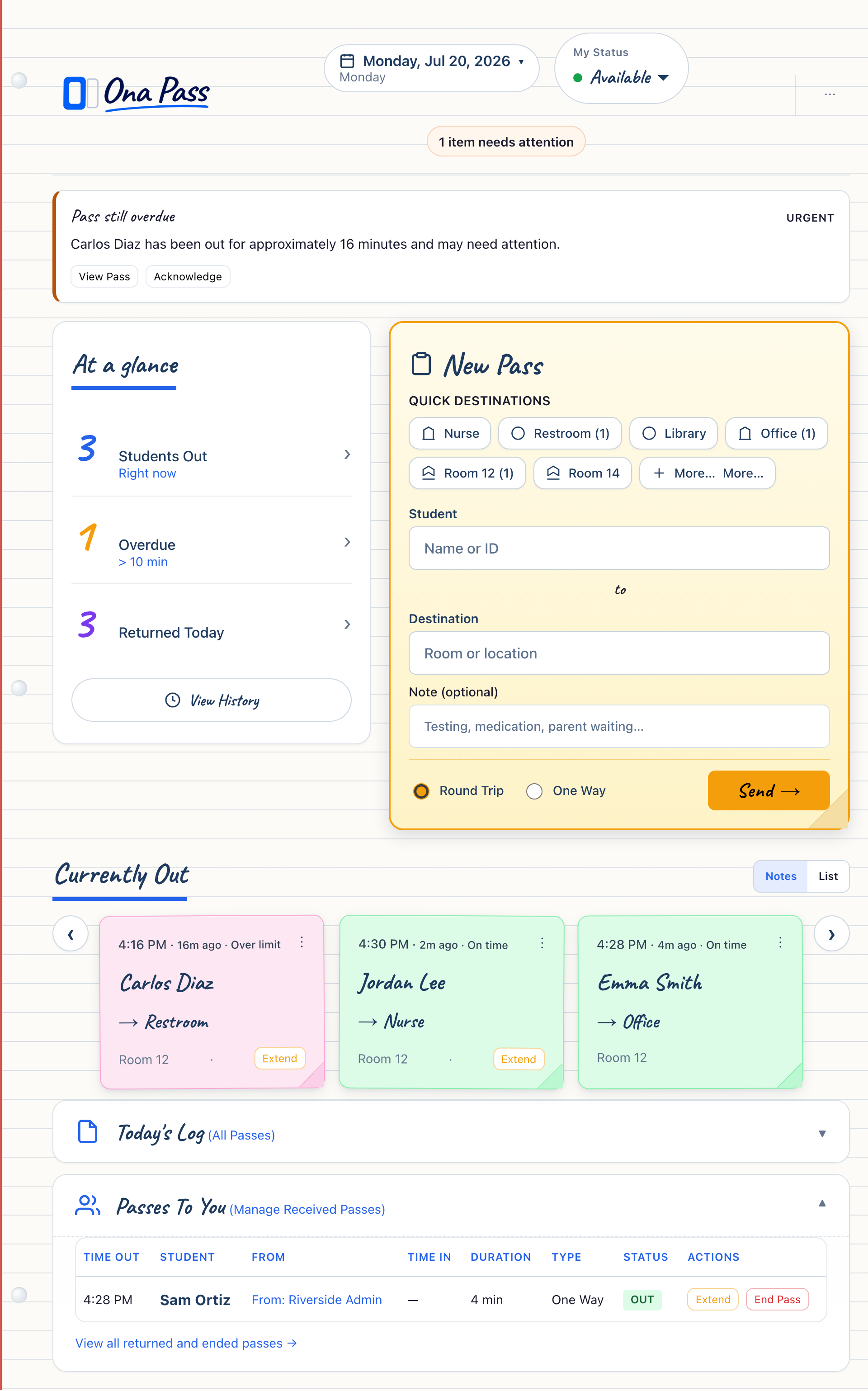
When you send a pass, it appears in Currently Out — like a sticky note on your notebook page. You see who is out, where they went, and how long they have been gone. End the pass when the student returns.
An active pass is visible immediately. Currently Out shows each student as a sticky note with their destination and elapsed time. Color and text work together — green for shorter trips, yellow and pink as time increases — so you can scan the page without reading every line.
From Currently Out you can End Pass when the student returns, or Extend Pass when they need more time. You remain the creator of passes you sent; the record updates in Today's Log when actions occur.
For Round Trip passes, the student is expected to return to you. For One Way passes, another adult may receive the student at the destination — covered in the next section.
You never wonder whether the pass "went through." If the sticky note is there, the pass is active. When it is gone, the pass is complete.
What about when a student arrives at your door from someone else's class?
Passes To You
When another staff member sends a student to your room, you see who arrived, where they came from, and what to do next — without guessing at the door.
Passes To You is your inbox tray on the notebook page. Inbound passes list the student name, sending location, destination, and elapsed time.
Send Back returns a student on a Round Trip to the teacher who sent them — one action, clear outcome. Extend Pass adds time when the visit runs long. End Pass closes the pass when the student leaves your room.
If you receive many inbound passes — front office, nurse, counselor — expand Passes To You at the start of a block and collapse it when you are primarily sending your own students. The section is always one tap away.
One Way passes may arrive without a return expectation; Round Trip passes give you Send Back when the sending teacher should receive the student again. The action chips show only what applies to that pass.
Can you see the full picture — who is out and what happened today?
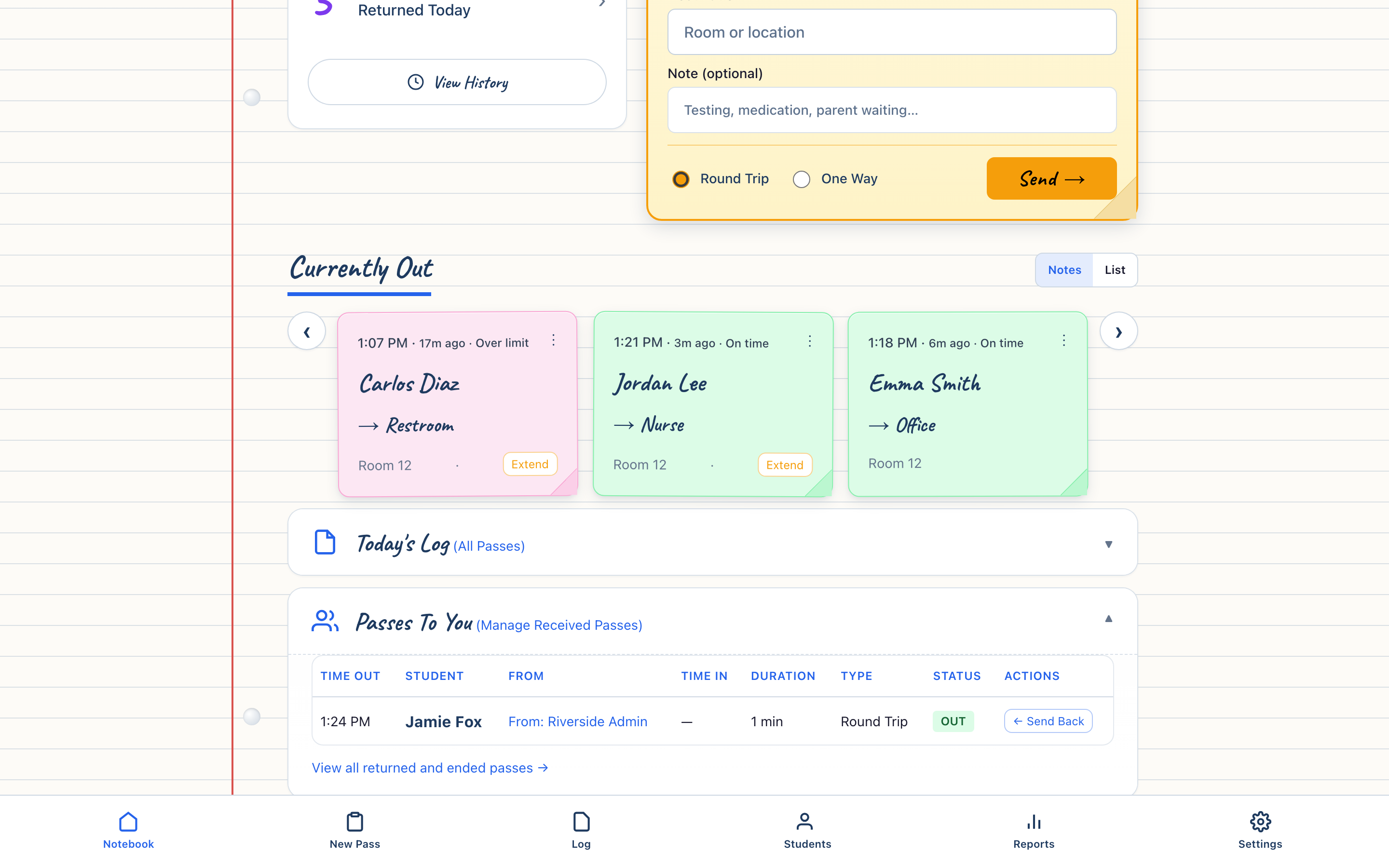
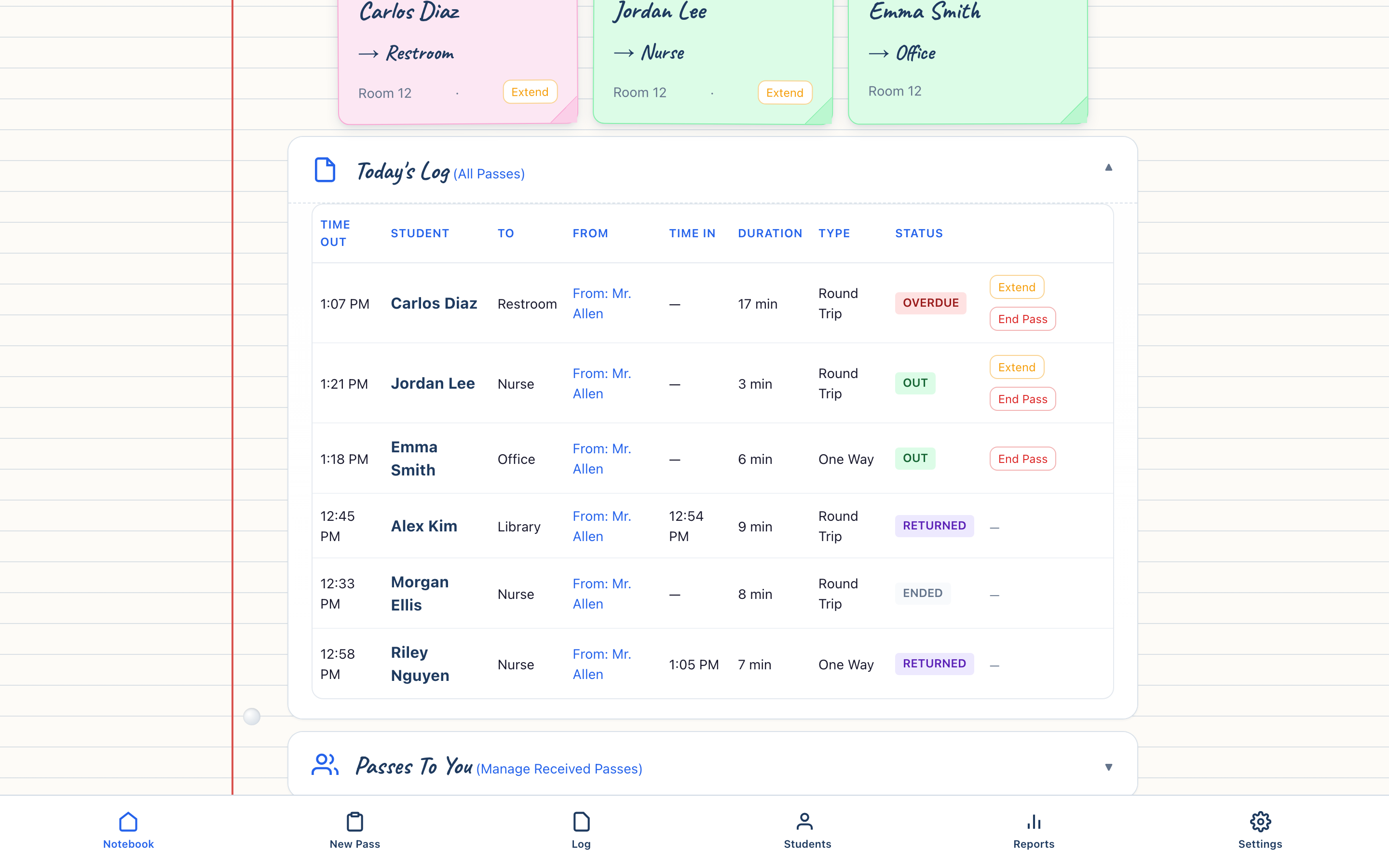
Live status and today's record — on the same page.
Currently Out shows who is out right now. Today's Log holds the running record — every pass you created or received today. Expand either section when you need it; both stay on the same notebook page.
Staff need two kinds of awareness: right now and today so far.
Currently Out answers right now. It is always visible on the main notebook page — sticky notes you can scan between sentences. When a student returns and you end the pass, the note disappears from Currently Out and the action is recorded.
Today's Log answers today so far. Expand it to see a chronological record — passes created, received, sent back, extended, ended. Each row shows what happened and when. There is no separate report to build at the end of the day; the record accumulated as you worked.
At a Glance summarizes the day in a small attached note when you want a quick count without opening the full log.
Ona Pass is not a district analytics platform. It gives staff an honest record of movement they participated in — sufficient for hallway accountability, parent conversations, and your own review between classes.
Explore Today's Log in the demo
This looks clear — but will your colleagues actually learn it?
About four minutes to learn the primary workflow.
Most staff learn the primary workflow in about four minutes: one page, three places to look — create a pass, see who is out, check your inbox when someone arrives. Familiar objects — a hall pass sheet, sticky notes, a record page — not a new software language to memorize.
Onboarding should respect that staff are hired to teach and support students, not to attend software training.
The primary path has three regions:
- New Pass — create and send
- Currently Out — see who is out now
- Passes To You / Today's Log — expand when receiving students or reviewing history
Student search accepts partial names and typed entries when the roster is incomplete. Empty states use plain language — no jargon, no blame when a section has nothing to show yet.
A printable Staff Quick Guide covers the same workflow on one or two pages for faculty meetings or a desk reference. The one-minute walkthrough shows the motion for staff who prefer to watch once before trying.
If you can create one pass, end one pass, and expand Today's Log, you know enough for a normal day. Advanced settings exist for administrators; daily staff work stays on the notebook page.
Download the Staff Quick Guide
Easy to learn — but can you rely on it during a real school day?
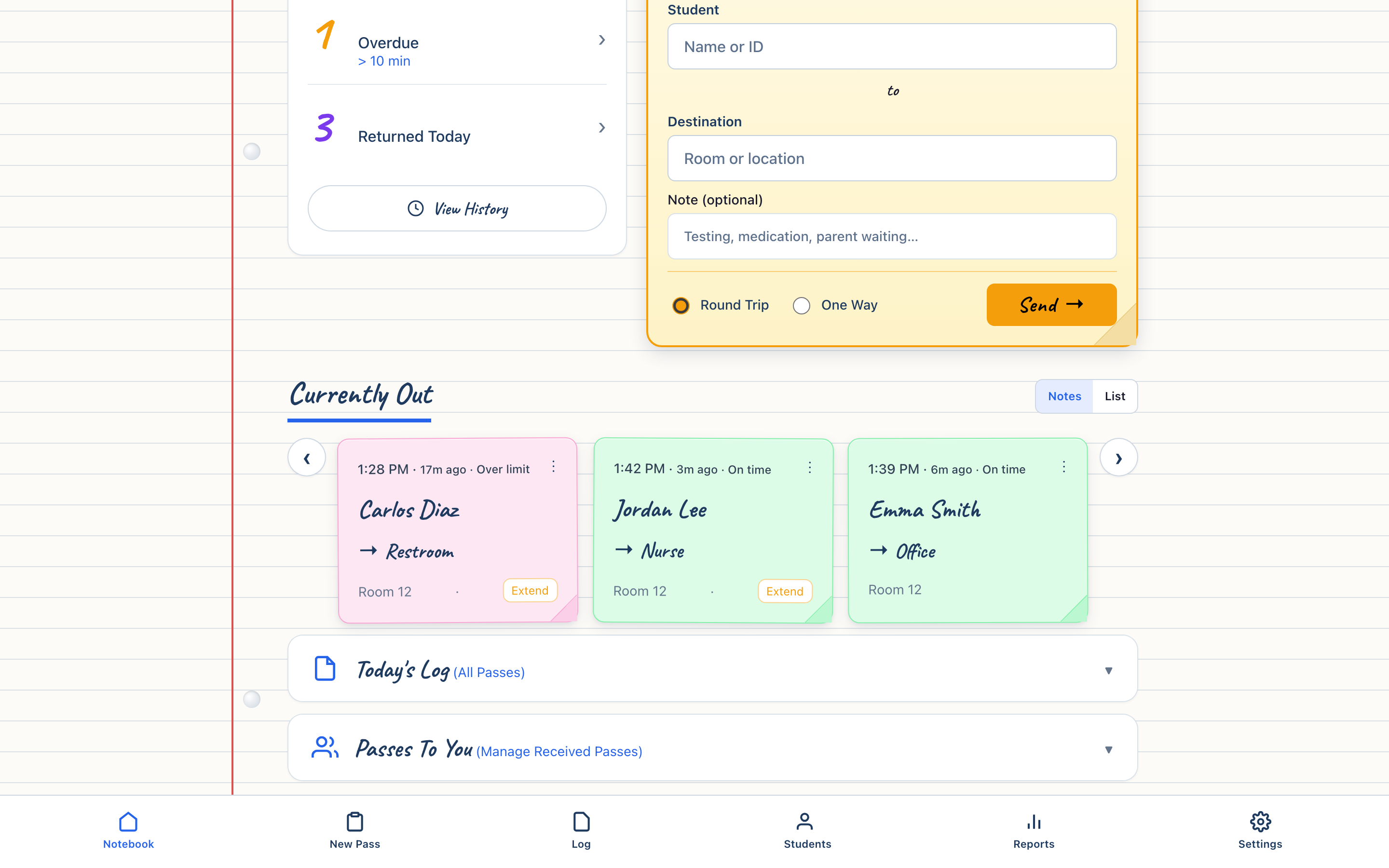
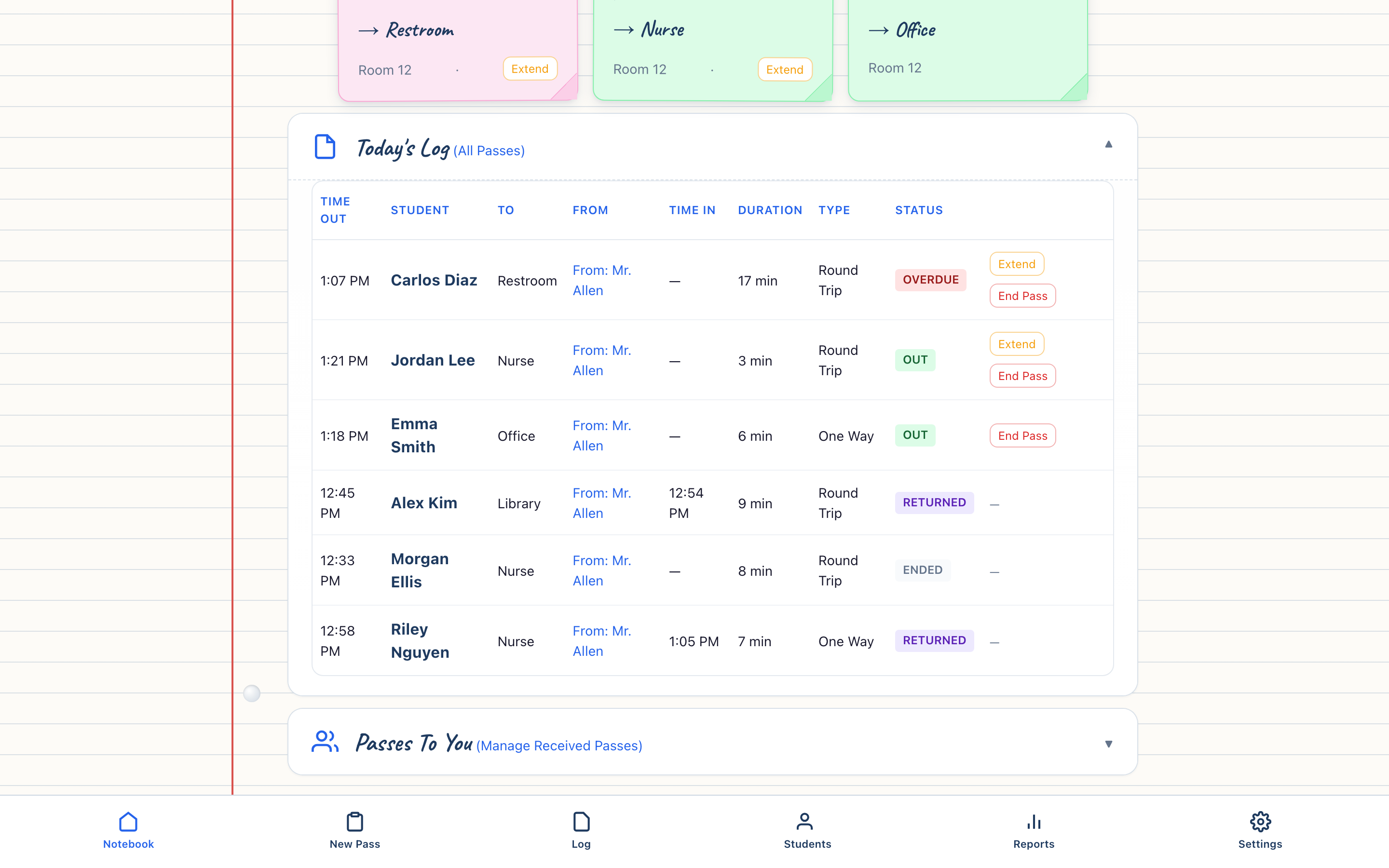
A clear record — described honestly.
Every pass leaves a record — who, where, when, and what happened next. Ona Pass shows live status and history on the same notebook page you use to create passes. We describe current capability honestly; we do not imply features that are not there yet.
Trust comes from what you can verify yourself during a normal day.
When you send a pass, it appears in Currently Out. When you end it, the note clears and Today's Log shows the action. When you Send Back an inbound student, the record reflects the return. You do not need a separate audit export to know what the system thinks happened — you watched it on your page.
Ona Pass runs in a modern web browser. Preview and pilot environments use documented demo data; production pilot schools receive scoped onboarding with defined support. Security and privacy documentation is available for staff who want deeper detail — ask your administrator or IT contact for the IT overview.
We will tell you when a capability is in preview, pilot-only, or planned — not shipped. That honesty is part of the product: schools evaluate better when claims match behavior.
Reporting beyond today's staff log, district-wide analytics, and advanced integrations are not the focus of the Staff Notebook. Administrators use the Campus Clipboard for campus-wide visibility; staff stay on the notebook page described here.
Questions Schools Ask Contact Us
If this fits your work — what should you do first?
Create your first pass in about five seconds.
Open the demo and create your first pass — choose a student, pick a destination, send. Prefer to watch first? Start with the one-minute walkthrough. Ready to bring Ona Pass to your school? Share the pilot page with your administrator or request a founder-school conversation.
Try it yourself. The demo opens the Staff Notebook in your browser. Create a pass, watch it appear in Currently Out, expand Today's Log to see the record. That single cycle tells you more than any feature list.
Watch first. The walkthrough covers create, Currently Out, Passes To You, and Today's Log in about one minute — enough to decide whether to try the demo or share with a colleague.
Bring it to your school. Pilots start with a defined scope — typically ten staff — so a team can evaluate without a district-wide commitment. Your administrator coordinates onboarding; staff receive a straightforward path to first pass.
Share with a colleague. Forward this page or the Quick Guide to a team lead, department chair, or front office partner who also manages passes.
Was this helpful? Tell us what you expected or what is still missing — feedback improves the product and this page.
Explore Demo Watch the Walkthrough View the Pilot Program Share with Administrator
Ona Pass for other roles
Student movement touches more than one adult in a building. Ona Pass speaks to each role without forcing everyone through the same screen.
Administrators
Campus Clipboard — live campus awareness, directory, rules, settings
Student Services
Shared visibility into movement, consistent workflows, everyday accountability
IT & Security
Browser access, deployment scope, security and privacy overview
Purchasing / Business Services
Pilot scope, evaluation path, transparent pricing
If you are evaluating for a team, start here — then share the administrator or IT page with colleagues who handle rollout.