Pilot · Teachers & Staff
Teacher quick start
About four minutes to learn the primary workflow — one page, three places to look. Create a pass, see who is out, check your inbox when someone arrives.
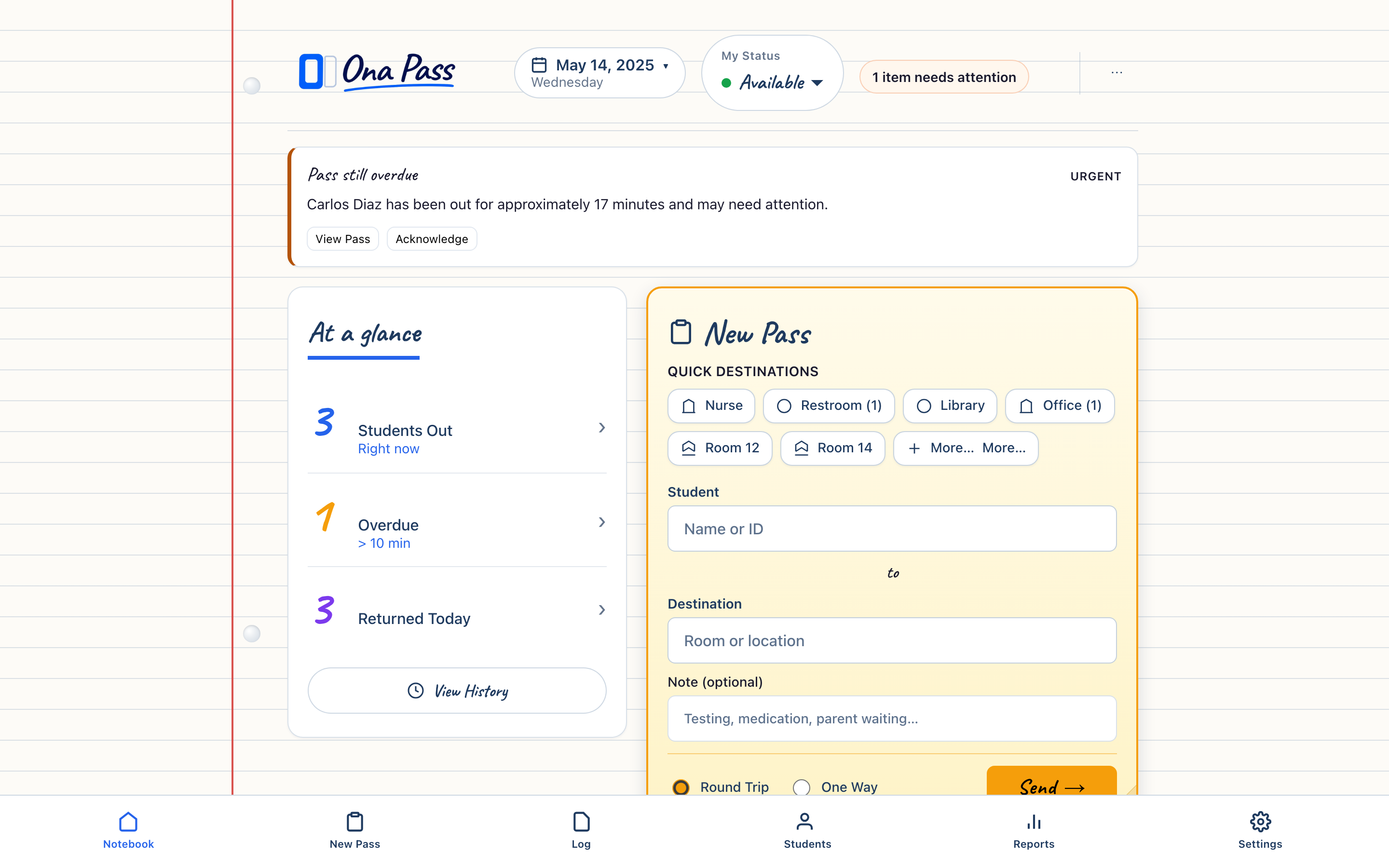
Your first pass
- Open the Staff Notebook. Sign in with your trial access and bookmark the page. New Pass is ready when you arrive — the hall pass sheet is front and center.
- Create a pass. Choose a student (search as you type), tap a destination, select Round Trip or One Way, and send. Most staff complete this in about five seconds once familiar.
- Check Currently Out. After you send, the pass appears as a sticky note below New Pass. You see who is out, where they went, and how long they have been gone. End the pass when the student returns.
- Expand Passes To You when needed. When a student arrives at your door from another class, expand Passes To You — your inbox tray. Send Back on a round trip, extend time if needed, or end the pass when they leave.
- Review Today's Log at end of block. Expand Today's Log to see every pass you created or received today. The record accumulated as you worked — no separate report to build.
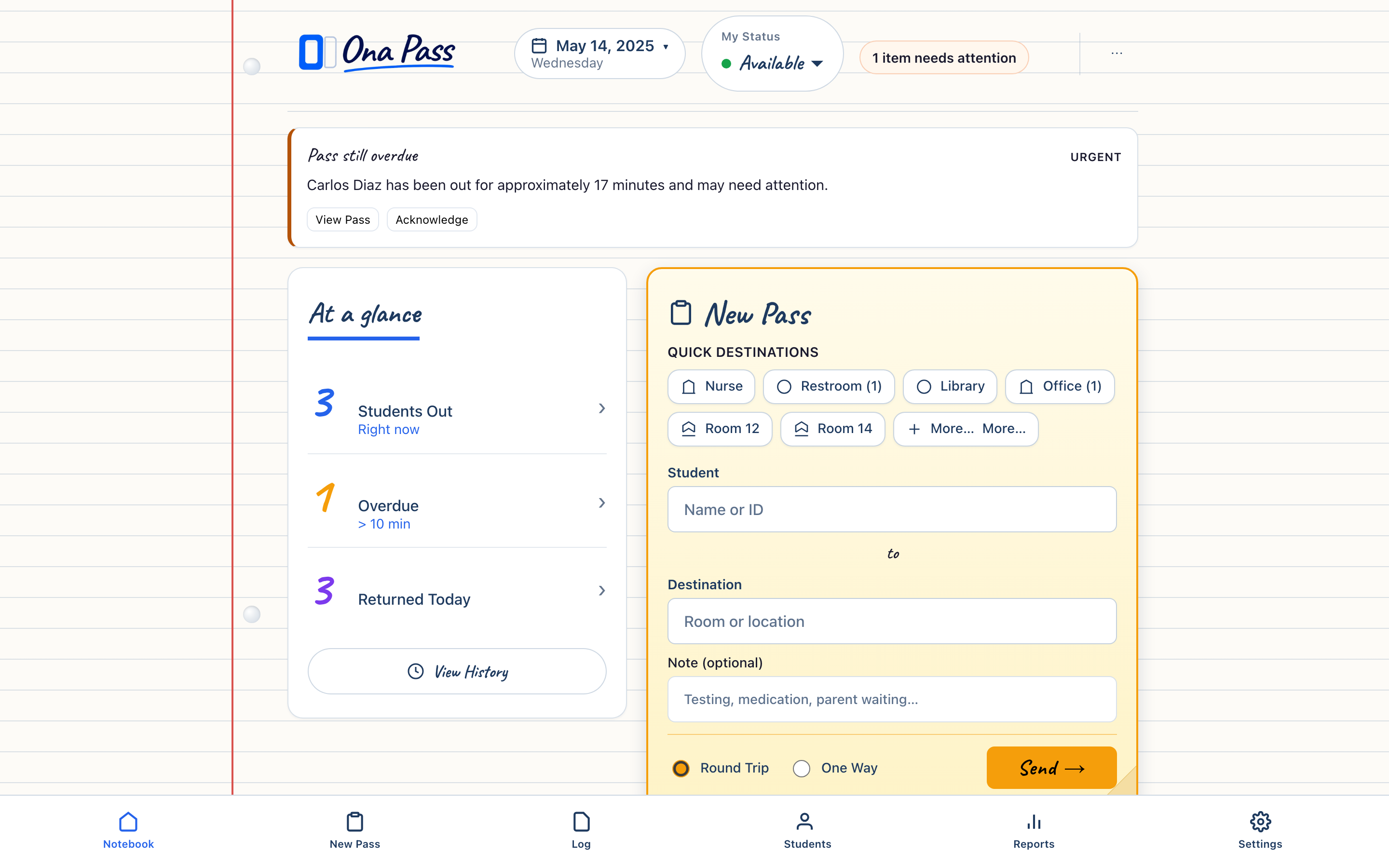
You rarely need to leave this page.
New Pass, Currently Out, Passes To You, and Today's Log all live on the same notebook surface. Notebook tabs at the bottom reach Students, Reports, and Settings — but daily pass work stays here.
Open Staff Notebook Full Teachers & Staff Guide Back to Welcome