Pilot · Administrator
Administrator quick start
Seven steps to set up your pilot — from reviewing the Campus Clipboard to confirming your team's first pass. Typical setup: about 20–30 minutes.
Try these first
Four quick actions that build confidence before staff begin creating passes.
- Create your first pass. Open + New Pass on the Live tab. Choose a student and destination, then send.
- Send a student to another room. Use a one-way pass to Room 14 or the Nurse — then confirm it appears in the Live Campus Pass Log.
- Open Campus Overview. Select the Campus tab to review location load, staff availability, and temporary locations.
- Watch a pass complete its lifecycle. Ask a staff member to end a pass on the Staff Notebook, then open the Log tab to see the completed record.
Setup steps
- Sign in with your trial key. Open the pilot environment using the code from your onboarding email. Confirm you reach the Campus Clipboard — not the Staff Notebook.
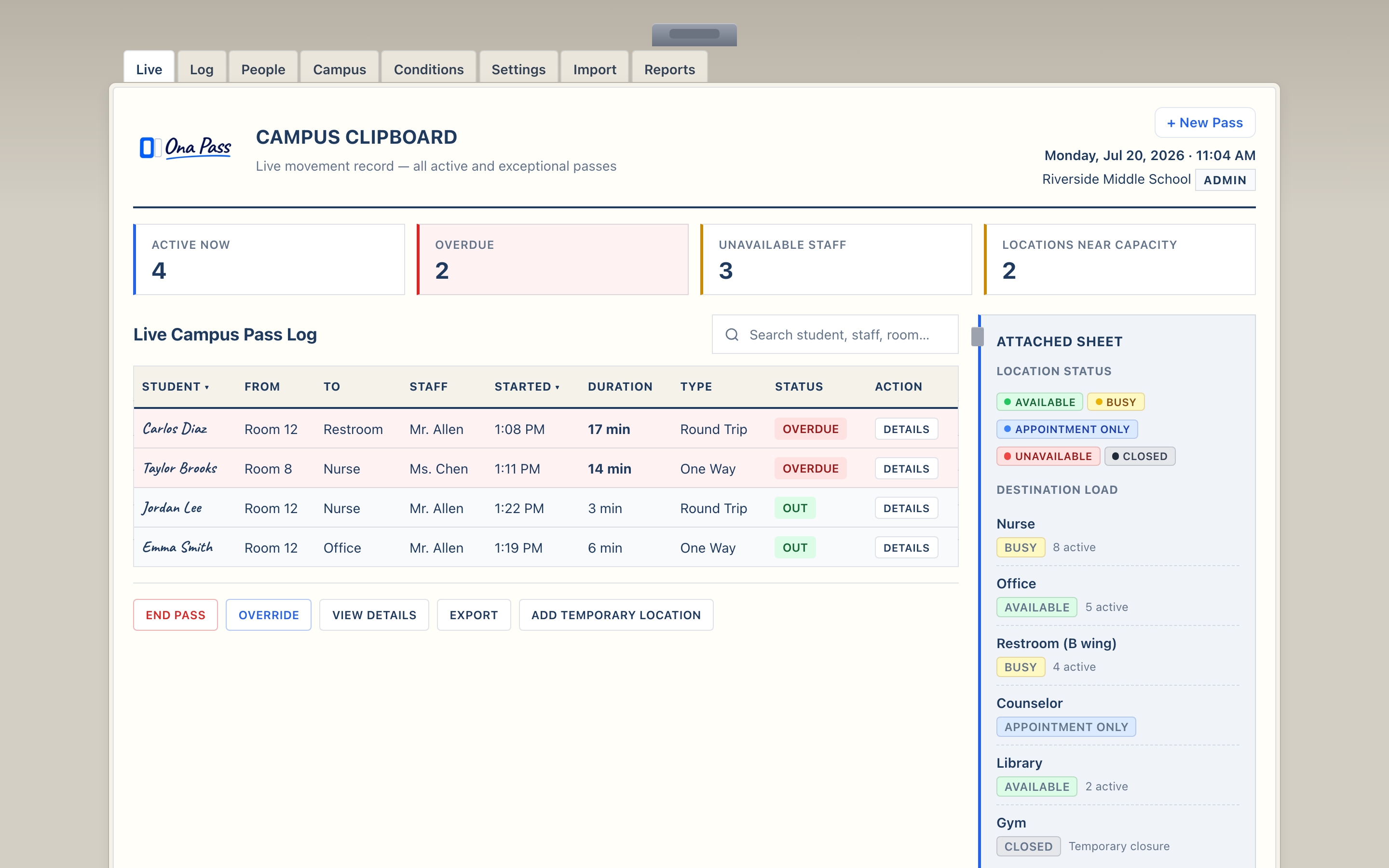
- Review the Campus Clipboard layout. Familiarize yourself with Currently Out, Campus Overview, and the staff directory. This is your oversight surface during the pilot.
- Verify your school roster. Check that participating students and staff appear correctly. Report discrepancies to support@onapass.org before staff begin creating passes.
- Review locations and pass defaults. Confirm Quick Destinations match your building — nurse, restroom, library, common rooms. Adjust school settings within current pilot scope.
- Invite participating staff. Share the Teacher Quick Start link with your pilot team — typically up to ten staff. Include their individual trial access details.
- Confirm the first pass. Ask one staff member to create a test pass during a class block. Verify it appears in their Currently Out and on your Campus Clipboard.
- Establish a feedback rhythm. Schedule a brief check-in at the end of week one. Direct staff to the Pilot Feedback Form throughout the evaluation.
Your role during the pilot is oversight — not daily pass creation.
Teachers manage passes on the Staff Notebook. You observe movement on the Campus Clipboard at natural checkpoints: start of a block, after a bell, when responding to a concern.
Open Campus Clipboard Share Teacher Quick Start Back to Welcome